
Bottleneck Calculator
Unleash Your PC True Power – Instantly Detect CPU & GPU Bottlenecks! Experience next-gen performance analysis with our advanced AI Bottleneck Calculator. Identify hardware limits, remove mismatches, and get smart upgrade suggestions in seconds to maximize gaming, editing, and productivity performance.
Is your powerful gaming rig or workstation not performing as expected? The problem might be a CPU-GPU bottleneck slowing everything down. Our Bottleneck Calculator instantly analyzes your system to detect performance mismatches and pinpoint which component is holding you back.
In just seconds, you’ll see how well your CPU and GPU work together, with accurate insights and smart upgrade suggestions to balance your system for peak performance. Whether you’re gaming, editing, or streaming, stop guessing and unlock your PC’s full potential today. Enter your specs, and let our tool optimize your setup fast, free, and precise!

What is a Bottleneck?
A bottleneck in a computer system happens when one part of your hardware slows down everything else. Think of your PC as a race team, if one runner is too slow, the whole team’s speed drops. In gaming or editing, this usually means your CPU and GPU aren’t working at the same pace, which causes lag, low FPS, or delayed rendering. A bottleneck appears when a strong component is forced to wait for a weaker one to catch up. This mismatch keeps your computer from using its full power, even if you’ve spent money on good parts.
Types of Bottlenecks
CPU Bottleneck
A CPU bottleneck happens when your processor can’t feed data to your GPU fast enough. You might see high CPU usage while your graphics card stays underused. The result? Lower FPS, stuttering, and delayed frame rendering in CPU-heavy games.
Fix CPU Bottleneck:
- Close extra programs and browser tabs while gaming.
- Reduce CPU-heavy settings like shadows, draw distance, or AI intensity.
- Upgrade to a faster CPU if the issue persists.
GPU Bottleneck
A GPU bottleneck happens when your graphics card can’t keep up with your CPU’s speed. Your processor might handle more data than the GPU can render, leading to low frame rates, laggy visuals, and poor image quality during high-end tasks.
Fix GPU Bottleneck:
- Lower graphic-intensive settings like resolution, anti-aliasing, or textures.
- Update or upgrade your graphics card.
- Ensure your GPU drivers are properly optimized.
Other Bottlenecks You Might Face
- Thermal Bottleneck: Overheating causes components to throttle and reduce speed.
- RAM Bottleneck: Too little memory limits multitasking and loading times.
- Storage Bottleneck: A slow hard drive can delay game or software loading.
- Display Bottleneck: A low-refresh monitor can waste high frame rates from your GPU.
Common Signs of a Bottleneck
- CPU or GPU usage stays at 100% while the other remains low
- Sudden FPS drops or inconsistent frame pacing
- Stuttering, lag, or slow game response
- Smooth performance in light tasks but lag during heavy ones
Why Detecting Bottlenecks Matters
Every PC has a limit — but knowing exactly which component is holding you back helps you make smart upgrade decisions. Instead of replacing everything, you can target the weak link and unlock smoother gaming, faster rendering, and overall better performance.
What is a Bottleneck Calculator?
A Bottleneck Calculator is an online tool that helps you analyze how efficiently your PC components, especially the CPU and GPU, work together. When one part of your system is much slower than the other, it creates a “bottleneck” that limits your computer’s overall performance.
For example, pairing a powerful graphics card with an old processor can cause your GPU to wait for data, resulting in low FPS, lag, or stuttering during gaming or rendering.
Our advanced PC Bottleneck Calculator compares your system’s specifications including CPU, GPU, Screen Resolution and more options section such as Storage Type, Purpose, and RAM. Our calculator Provides a bottleneck percentage to show how balanced your setup is.
- A result below 10–20% is healthy and balanced.
- A result above 20% means one component is holding the other back and might need an upgrade.
Instead of replacing your entire system, the calculator helps you identify the weakest component and upgrade only what’s necessary, saving money while improving performance. Whether you’re a gamer, video editor, streamer, 3d rendering or PC builder, this tool helps you achieve a perfectly optimized setup where every part performs at its best.

How to Use Our Bottleneck Calculator
Using our pc bottleneck calculator doesn’t require any technical expertise. Just follow a few simple steps outlined below.
Input Your Components
Start by gathering basic information about your PC’s hardware components. Then, select each part from the dropdown menus including your CPU, GPU, screen resolution or more show advance option like (storage type, purpose and RAM). You’ll also need to specify your primary use case, such as gaming, video editing, or general productivity. This helps the calculator provide a more accurate analysis.
Run the Calculation
After entering all the necessary details, click the “Proceed to Calculation ➜” button. Our tool uses advanced algorithms to analyze the performance and compatibility of each component. It then identifies which part, if any, is limiting your system’s overall performance.
Review the Results
Once the analysis is complete, you’ll receive a bottleneck percentage score that reflects how well your components work together.
If your system shows a significant imbalance, consider upgrading or replacing the suggested component to improve performance and achieve smoother operation.
How Does a Bottleneck Calculator Work?
A bottleneck calculator is a powerful tool that helps you understand how well your PC components work together. It quickly identifies which part of your system CPU and GPU might be limiting overall performance. Here’s a breakdown of how it works and how to interpret your results effectively.
Enter Your PC Components
The process begins with providing accurate details about your hardware.
You’ll typically need to select or enter information such as:
- CPU (Processor)
- GPU (Graphics Card)
- Screen Resolution
- more options section such as Storage Type, Purpose, and RAM.
Component Analysis
Once you enter the details, the calculator compares the technical specs of your CPU and GPU. Using built-in algorithms, it evaluates how efficiently these components communicate and whether one is significantly slower than the others.
This stage determines how balanced your system is for instance, whether a strong GPU is being slowed down by a weak CPU, or vice versa.
Bottleneck Calculation
After analyzing your system, the calculator provides a bottleneck percentage.
This percentage shows how much one component limits another.
- 0–10% → Perfectly balanced setup.
- 10–20% → Slight imbalance.
- 20–50% → Noticeable performance limitation.
- 50%+ → Major mismatch.
A smaller percentage means your system is well-optimized, while a higher percentage signals that one component is holding your PC back.
Reviewing the Results
After calculation, you’ll see which component is the bottleneck.
For example:
- If you see a CPU Bottleneck, your processor can’t keep up with the GPU, causing stuttering or frame drops.
- If it’s a GPU Bottleneck, your graphics card is struggling during graphically demanding tasks.
These insights help you decide whether you need a hardware upgrade or a simple optimization, such as lowering in-game settings or closing background apps.
Interpreting the Report Like a Pro
Your bottleneck report often includes charts or visual meters showing CPU and GPU load distribution.
Here’s how to make sense of it:
- A high CPU load with low GPU usage → CPU bottleneck
- A high GPU load with idle CPU → GPU bottleneck
- Both running at 90–100% → Excellent component balance
Evaluating Component Performance
Understanding individual component performance is key to long-term optimization.
For instance, pairing a high-end GPU with an outdated CPU can limit gaming performance. Likewise, a fast processor won’t help much if your graphics card can’t render frames efficiently.
Plan for the Future
Even if your system is currently balanced, software demands evolve rapidly.
Future games and applications often require more powerful hardware.
Keeping this in mind helps you plan smarter upgrades ensuring your PC stays strong and capable for years.
If you’re a gamer, editor, or content creator, using a gaming PC compatibility checker can help you future-proof your setup and avoid frequent upgrades.
Reading the Results
A PC bottleneck calculator doesn’t just identify problems. It helps you understand your PC’s strengths and weaknesses. By regularly checking your hardware balance and staying informed about your system’s performance, you can make confident upgrade decisions and enjoy smoother, faster computing experiences.
Key Factors in Bottleneck Calculation
A bottleneck calculator examines every major component of your PC to pinpoint which part is holding back performance. Several key elements influence your system’s balance and efficiency.
CPU
The CPU is the brain of your computer. It handles logic, instructions, and multitasking. If your processor can’t keep up with your graphics card, your PC performance will suffer even if you own a top-tier GPU.
For example, pairing a powerful GPU like the RTX 4080 with an entry-level Intel Core i3 can lead to noticeable lag and frame drops because the CPU simply can’t process data fast enough for the GPU.
GPU
The GPU handles all visual data — from gaming graphics to video rendering. A weak or outdated GPU can drastically reduce frame rates, visual quality, and responsiveness.
For example, if you install an older GPU like the GTX 960 in a high-end setup, your system will struggle to maintain smooth gameplay and fast rendering. This mismatch creates a GPU bottleneck where your CPU waits idly for the GPU to catch up.
Screen Resolution
Your monitor’s resolution directly affects GPU performance. Higher resolutions, like 2K or 4K, require the GPU to render more pixels per frame, which increases workload. A weak GPU may perform well at 1080p but struggle badly at 4K, causing lag and frame drops.
Tip: Match your GPU’s strength with your display resolution. If your graphics card isn’t built for 4K gaming, lowering the resolution can provide smoother and more stable performance.
RAM
RAM temporarily stores the data your CPU needs to access quickly. Insufficient or slow RAM can slow down application performance, multitasking, and even affect gaming smoothness.
Storage
Storage plays a major role in system responsiveness. Traditional Hard Disk Drives rely on spinning disks, which makes them slower to read & write data. This can cause long loading times & sluggish file access.
Cooling System
An efficient cooling setup keeps your components at optimal temperatures. When your CPU or GPU overheats, they throttle performance to prevent damage, a process that significantly reduces speed. This thermal bottleneck can lead to sudden frame drops, stutters, and slower system response times.
CPU and GPU Bottleneck Scenarios
Understanding how your CPU and GPU share workloads helps you detect pc performance bottlenecks. Below are common utilization patterns that reveal whether your system is CPU- or GPU-bound:
Low CPU Usage & Low GPU Usage
When both CPU and GPU usage are low, the task isn’t demanding. This often occurs in lightweight games or low graphics settings. Your system has plenty of unused resources ideal for smooth gameplay and multitasking.
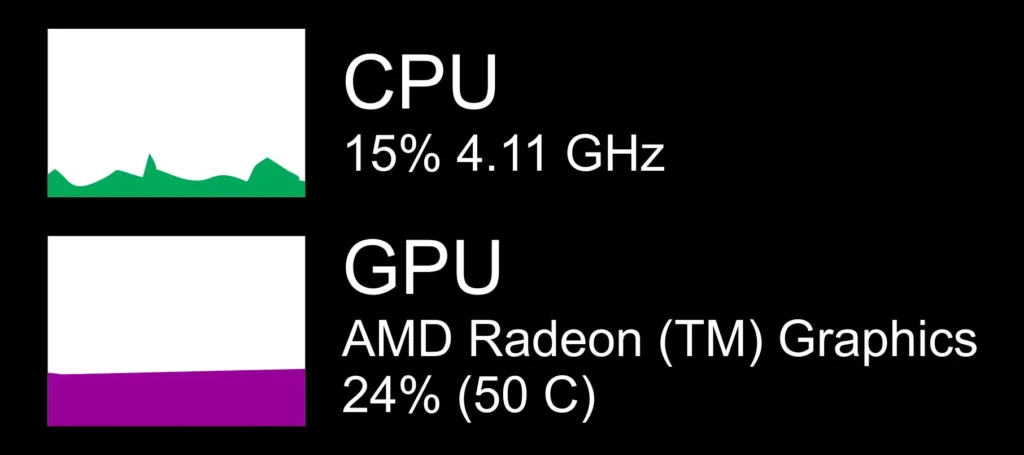
Low CPU Usage & Maximum GPU Usage
Low CPU and maxed-out GPU usage indicate a GPU bottleneck. The workload is graphics-intensive, and your graphics card is the limiting factor. Try lowering graphics settings or upgrading your GPU to improve FPS.
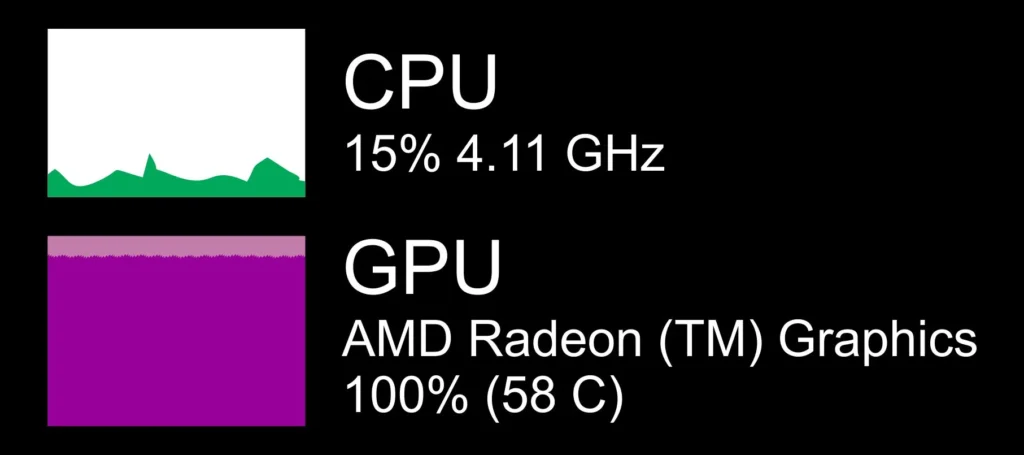
High CPU Usage & Maximum GPU Usage
Both components are working hard your system is nearly balanced. The GPU might be slightly limiting performance, but overall, this is a healthy workload balance for gaming or rendering tasks.
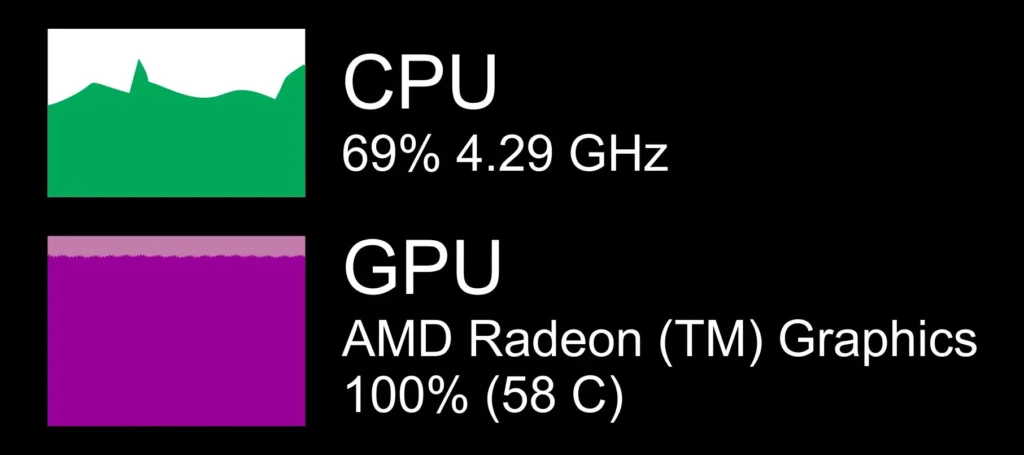
Maximum CPU Usage & Low GPU Usage
Here, the CPU is the bottleneck. The processor is fully utilized while the GPU is underused. This typically happens in CPU-heavy tasks like simulations, strategy games, or background processing. Upgrading your CPU can significantly improve performance.
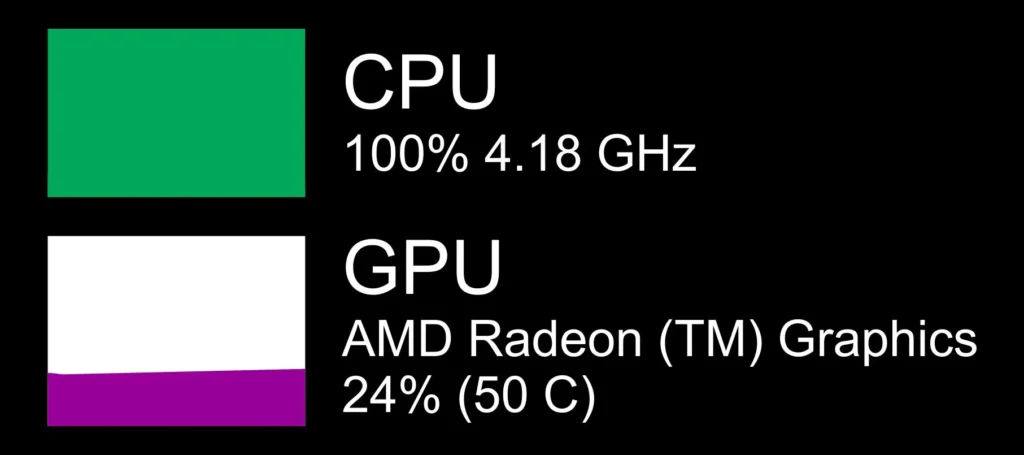
Maximum CPU Usage & High GPU Usage
Both CPU and GPU are active, but the CPU is maxed out first. This means your system is nearly balanced, with a slight CPU bottleneck that may limit peak performance in demanding scenes.
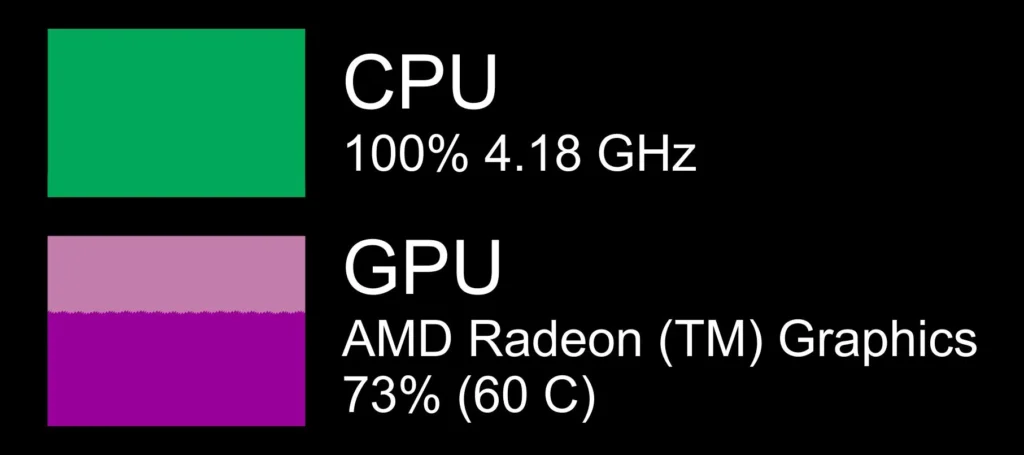
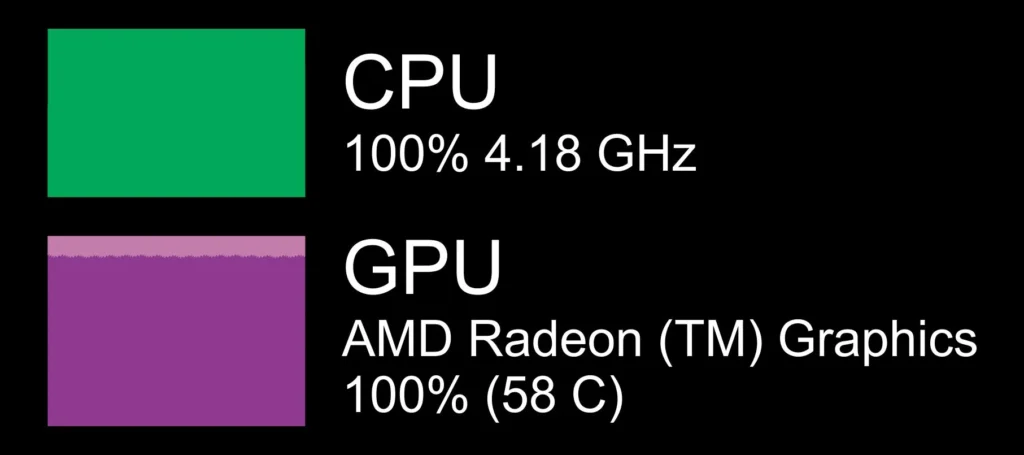
Maximum CPU Usage & Maximum GPU Usage
When both components hit 100%, your system is fully optimized and performing at its maximum capacity. This scenario is normal in demanding AAA games or rendering workloads. Make sure you have efficient cooling to prevent overheating.
How Bottlenecks Affect PC Performance
A bottleneck occurs when one hardware component (CPU, GPU, or RAM) limits the performance of others. When this happens, your system can’t reach its full potential causing slower speeds, lag, or reduced FPS. In many cases, these issues are linked to underlying GPU problems, so it’s important to test GPU health and performance before upgrading any components. Understanding how bottlenecks work helps you make smarter upgrade choices and maintain a balanced PC build.
How the Bottleneck Calculator Helps You
Our Bottleneck Calculator analyzes your PC configuration to find out which component is holding back your performance. It instantly compares your CPU, GPU, RAM or more other balance, showing how compatible your setup is. You’ll also get detailed suggestions on which part to upgrade — saving time, money, and ensuring smoother performance in gaming, video editing, streaming, or general use.
Tips to Fix or Prevent Bottlenecks
How to Reduce PC Bottlenecks
Using a Bottleneck Calculator helps identify which component — CPU, GPU, Screen resolution, RAM or more other — is limiting your system’s performance. But once you’ve found the problem, how do you fix it? Here are the most effective ways to reduce bottlenecks and optimize your PC for maximum performance.
Upgrade Your Components
If your bottleneck calculator identifies the CPU or GPU as the weak link, upgrading that component can resolve most performance issues.
- CPU Bottleneck:
If you’ve installed a powerful graphics card but have an older processor, your CPU may be holding back the GPU’s performance. Consider upgrading to a newer, faster CPU that matches your GPU’s capability. - GPU Bottleneck:
If your CPU is strong but your graphics card is outdated, upgrade to a more powerful GPU. This ensures that your system can handle high-end gaming, video editing, and rendering tasks smoothly.
Increase Your RAM
If your CPU and GPU are compatible but you still experience frame drops, stuttering, or lag, the issue might be a memory bottleneck.
- Upgrade to faster or larger-capacity RAM.
- Ensure you’re using dual-channel memory for improved data flow.
More high-speed RAM allows your system to handle larger textures and data, helping your CPU and GPU run at full potential.
Upgrade Your Monitor
Sometimes, performance issues aren’t caused by internal components but by your monitor’s refresh rate or resolution limitations. If your bottleneck calculator shows that your CPU and GPU are performing well, but you still notice frame drops or display lag, your monitor might be the culprit.
- Upgrade to a high-refresh-rate monitor for smoother gameplay.
- Make sure your monitor’s resolution and refresh rate match your GPU’s capabilities.
A quality monitor ensures you fully experience the performance you’ve invested in.
Maximize Cooling and Airflow
Even if your components are balanced, thermal throttling can mimic a bottleneck. When your CPU or GPU overheats, it automatically slows down to prevent damage reducing performance.
To fix this:
- Add efficient air coolers or switch to liquid cooling.
- Improve case airflow with additional fans or better cable management.
- Regularly clean dust from your system to maintain proper ventilation.
Keeping your system cool ensures consistent, high-level performance without throttling.
Ready-made Bottleneck-free Build (Simple to Advanced)
| Component | Lite Build | Mid-Tier Build | Advanced Build |
| CPU | Intel Core i3-9320 @ 3.70GHz | Intel Core i5-13600KF | Intel Core i7-14700K |
| GPU | NVIDIA GTX 1650 4 GB | NVIDIA RTX 3060 12 GB | NVIDIA RTX 4070 Ti 12 GB |
| RAM | 16 GB DDR4 | 32 GB DDR5 | 64 GB DDR5 |
| Storage | 500 GB NVMe SSD | 1 TB NVMe SSD | 2 TB NVMe SSD |
| Price Range | $500 – $600 | $1100 – $1300 | $2000 – $2500 |
Bottleneck Calculator: Our Tool vs Competitors
| Features | Our Tool | Competitors |
| Component Coverage | CPU, GPU, Resolution, RAM, Storage, and Purpose. | CPU and GPU only in most cases. |
| Results | Detailed reports and actionable insights. | Text-based result. |
| Recommendations | Detailed, specific component upgrades. | General upgrade suggestions, e.g., “Upgrade CPU.” |
| Mobile-Friendly | Fully responsive for mobiles and tablets. | Not optimized for mobile. |
| Data Freshness & Tech Updates | Always updated with the newest tech and real-world data. | Uses old data and doesn’t include the latest hardware. |
Trusted Bottleneck Calculator
Are you looking for a reliable way to analyze your computer’s performance for potential bottlenecks? Our Bottleneck Calculator is one of the most accurate and up-to-date tools available. It supports a wide range of components from older generation hardware to the latest CPUs and GPUs ensuring accurate results for any type of system.
Conclusion
A Bottleneck Calculator is an essential tool for anyone who wants their PC to perform at its best. It accurately detects which component whether CPU, GPU, Screen Resolution, RAM, storage type, or Purpose is limiting your system’s efficiency and causing lag or slowdowns. By analyzing how all parts work together, the tool provides smart upgrade suggestions to eliminate performance gaps and balance your setup.
Whether you’re a gamer, video editor, or everyday PC user, fixing bottlenecks early can dramatically boost speed, stability, and responsiveness. And if you’re planning to build a new PC, using this calculator before buying parts can save you both time and money, ensuring every component works in perfect harmony. Don’t let hidden bottlenecks hold your system back analyze, upgrade, and unlock your PC’s full potential with our powerful PC Bottleneck Calculator today.