
What Is Bottlenecking in Valorant?
Bottlenecking in Valorant happens when one component of your PC limits the performance of another, stopping your system from reaching the FPS it should. Most of the time, the CPU is the reason behind this. Valorant is designed for high frame rates, fast reactions and low input lag. If you are new to gaming performance, understanding what FPS means can help you see why higher frame rates give players a competitive advantage.
When your CPU can’t process frames quickly enough, the GPU sits idle instead of running at full performance. This is why some players upgrade to a powerful graphics card but see little improvement in FPS. Even a strong GPU paired with a weaker processor can cause frame drops, stuttering or inconsistent gameplay all things you don’t want in a competitive shooter.
In general, lower settings like 1080p often create a CPU bottleneck because the system tries to push higher frames, while extremely high resolutions such as 4K shift the load to the GPU. Understanding this balance helps you avoid unnecessary upgrades and focus on the hardware that actually improves performance. For smooth, high-FPS gameplay in Valorant, keeping your CPU and GPU well-matched is key.
Signs Your PC Is Bottlenecking in Valorant
Spotting a hardware imbalance early is important. Using a reliable Bottleneck Calculator can quickly show whether your CPU or GPU is limiting performance, helping you avoid wasting money on the wrong upgrade. If your performance feels worse than expected, these common signs usually point to a hardware imbalance:
- Low FPS Despite a Strong GPU – If you are running a graphics card like an RTX 3060 or better but still getting lower FPS on competitive settings, your CPU is likely holding the system back.
- CPU Usage Near 100% – When the processor is fully loaded while the GPU stays underused, it’s a clear signal the CPU is limiting performance.
- Frame Drops or Stuttering – Sudden FPS dips or uneven frame pacing often mean your processor can not keep up with the games demand.
- Noticeable Input Lag – Delayed shots or abilities can happen when the CPU is overloaded, directly affecting your reaction time.
- In-Game Performance Warning – Open Valorant’s stats (CTRL + F). If it shows “CPU limited,” there’s a strong chance you are dealing with a bottleneck.
Common Causes of Bottlenecks in Valorant
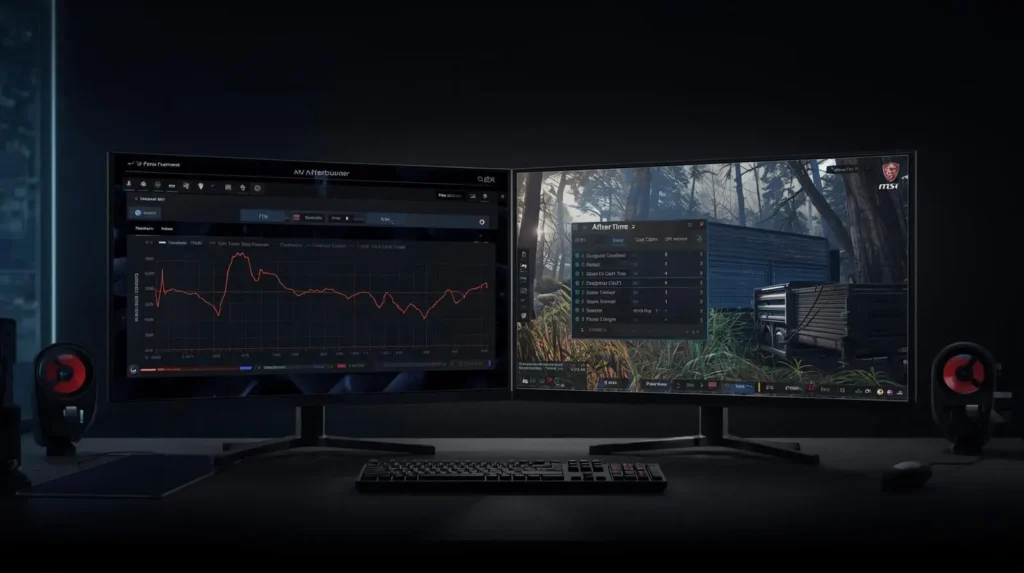
Bottlenecks are common in Valorant, especially for players aiming for 144Hz, 240Hz, or higher refresh rates.It is the CPU struggling to keep up with the games demand for high, stable frames. Here are the main reasons it happens:
- CPU Limitations – Valorant relies heavily on processor speed at competitive settings. Even a solid GPU can underperform if paired with an older CPU. Understanding the difference between CPU vs GPU responsibilities in gaming makes it much easier to identify where the real performance problem is coming from.
- Playing at Low Resolutions – At 1080p or lower, the GPU has less work to do, which shifts the pressure onto the CPU and can expose performance gaps.
- GPU Bottleneck – This usually appears only at very high resolutions like 4K or ultra settings, where the graphics card becomes the limiting factor.
- Slow RAM Speeds – Faster memory helps maintain stable frame times. Enabling XMP or EXPO can instantly improve performance if your RAM isn’t running at its rated speed.
- Background Apps – Extra programs, browser tabs, or overlays quietly consume CPU resources and reduce available power for the game.
- Thermal Throttling – Poor cooling can force your CPU or GPU to slow down to control temperatures, leading to sudden FPS drops.
- Outdated Motherboards – Older chipsets may restrict RAM speed, power delivery or newer CPU features, sometimes creating hidden performance limits.
How to Check for Bottlenecks in Valorant (Tools + In-Game Methods)
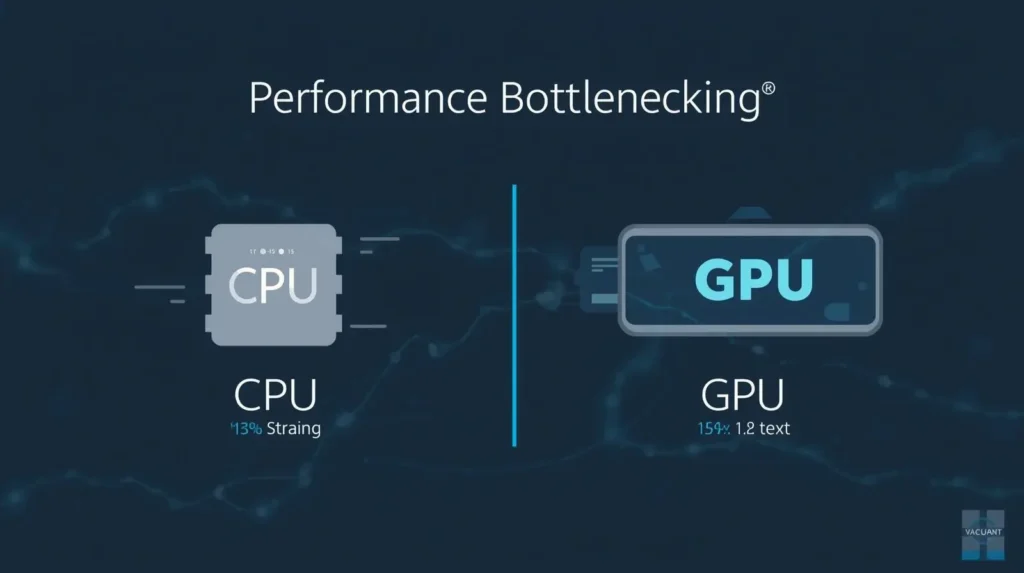
You don’t need advanced software to figure out what’s slowing your PC down. With a few simple checks, you can quickly tell whether your CPU or GPU is the limiting factor.
- Use Valorant Performance Stats – Press Ctrl + F to open in-game stats. Compare CPU and GPU render times. If the CPU number is higher, your processor is likely the bottleneck.
- Monitor Task Manager – While playing, check usage levels. A CPU stuck near 100% with a relaxed GPU usually means your processor is holding performance back.
- Try MSI Afterburner – This overlay shows real-time usage, temperatures and clock speeds, making it easier to spot spikes or throttling during intense moments.
- Lower Your Resolution – Drop from 1440p to 1080p and watch the FPS change. If performance barely improves, the CPU not the GPU is your limit.
- Focus on Frame Stability – Smooth, consistent FPS matters more than high numbers. Frequent drops during fights often point to CPU overload.
Simple Fixes to Reduce Bottlenecks
Before thinking about expensive upgrades, try a few smart optimizations. Small adjustments can noticeably improve frame stability and responsiveness.
- Lower CPU-Intensive Settings – Reduce options like shadows, detail quality and anti-aliasing, which can quietly strain your processor.
- Cap Your FPS – Match your FPS to your monitor’s refresh rate. Pushing unnecessary frames only increases CPU load.
- Close Background Apps – Browsers, overlays and recording software consume valuable resources. Shut them down before launching the game.
- Enable XMP / EXPO – Make sure your RAM runs at its advertised speed to help minimize stutters and improve frame timing.
- Keep Drivers Updated – New GPU and chipset drivers often include performance improvements and stability fixes.
- Improve Cooling – High temperatures can force components to slow down. Better airflow or cleaned fans can prevent thermal throttling.
- Switch to High Performance Mode – Setting your Windows power plan to High Performance helps maintain steady clock speeds during gameplay.
If your CPU still runs at full load after these tweaks, upgrading your processor may be the most effective way to unlock higher, more consistent FPS in Valorant.
Real User Fixes & Community Solutions
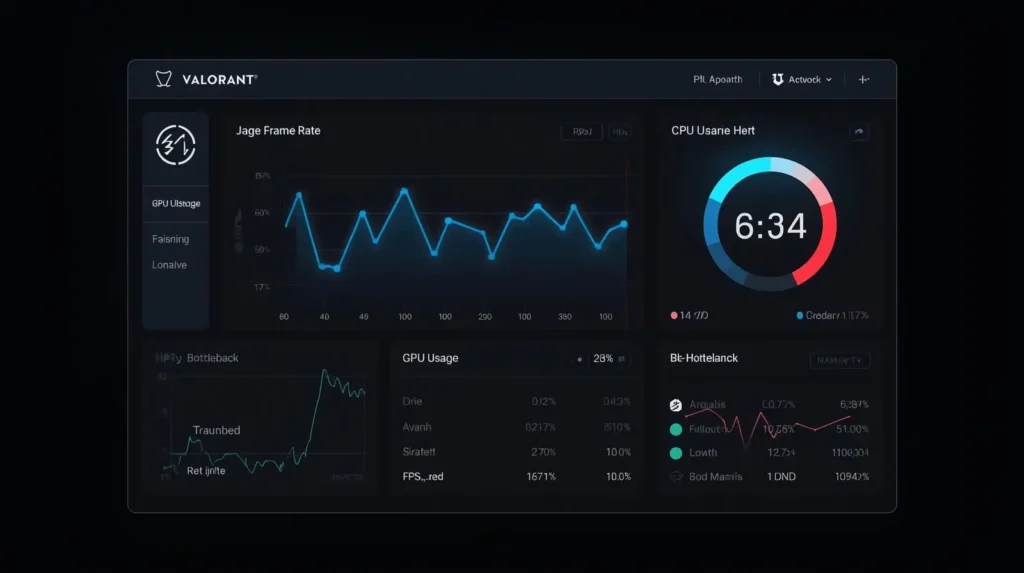
Here are some practical, community-backed ways to fix bottlenecks in Valorant:
- Check CPU Usage – Users report FPS drops even with strong GPUs when CPU hits 100%. Monitor usage with Task Manager or MSI Afterburner.
- Adjust Power Settings – Set Windows power plan to High Performance; laptops may throttle CPU at default settings.
- Update Drivers & BIOS – Ensures your CPU and GPU run at full potential.
- Lower Graphics & Resolution – Reduce in-game settings and resolution to ease CPU load, especially on older systems or integrated GPUs.
- Enable XMP / Use Faster Storage – Fast RAM and NVMe SSDs help smooth frame times and load assets quicker.
- Consider Hardware Upgrade – Older CPUs or laptops often need a modern processor or better cooling for stable high-FPS gaming.
These fixes are proven by Reddit and Quora users dealing with real-world Valorant bottlenecks, making them practical and reliable for most players.
Conclusion
Bottlenecking in Valorant is one of the main reasons your PC might not reach its full FPS potential and in most cases, the CPU is the culprit. Understanding the signs like high CPU usage, low FPS despite a strong GPU, stuttering or input lag helps you pinpoint the issue quickly without wasting money on unnecessary upgrades.
Many performance issues can be solved with simple tweaks: lowering CPU-heavy settings, capping FPS to your monitor’s refresh rate, closing background apps, enabling XMP for faster RAM, updating drivers and improving cooling. These adjustments often restore smooth, consistent gameplay without needing new hardware.
For older systems or laptops, a hardware upgrade, especially a modern CPU or better cooling may be the most effective way to unlock higher, stable FPS. Combining smart optimization with real-world user fixes ensures your Valorant experience stays competitive, responsive and enjoyable every match.
Struggling with FPS drops or stutters in Valorant? Try our FPS Calculator to estimate the frame rates your PC should deliver and instantly see whether your hardware is holding you back.